Edit your deck
Find your way around the Encelade editor — the canvas, pages, layers, and the tools that change them.
Every generated deck opens in the editor. This guide covers the layout of the editor and the most common edits. You can reopen the guided in-app tour any time by adding ?tour=1 to the editor URL.
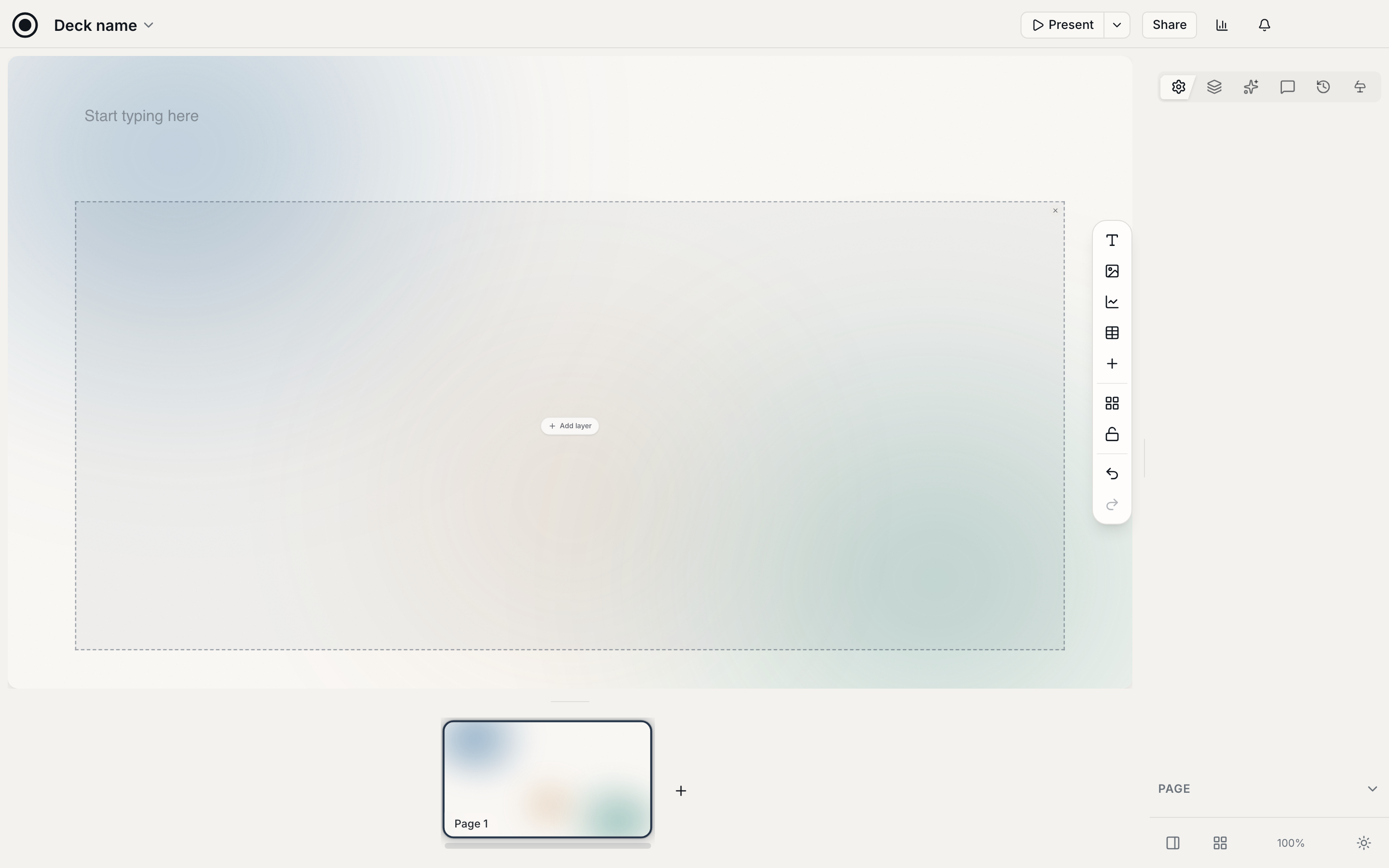
The editor at a glance
- Canvas — the current page, shown in the center. Click any element to select it.
- Page strip — thumbnails of every page. Click to jump between them; drag to reorder.
- Side panel — the editing controls for whatever you have selected: text, image, chart, or the page itself.
- Top bar — present, share, and export actions, plus undo/redo.
Common edits
Edit text
Click any heading or paragraph to edit it inline. Select text to change its size, weight, or alignment from the side panel.
Replace or add media
Select an image to swap it, or add a new image, chart, or shape from the page's add menu. Charts are native and editable — you set the data directly rather than pasting a picture.
Charts and infographics use Encelade's native chart system, not AI image generation. AI image generation is for photos and illustrations.
Add, duplicate, reorder, or delete pages
Use the page strip to manage pages: add a new one, duplicate an existing page to reuse its layout, drag to reorder, or delete pages you don't need.
Ask AI to edit
Beyond manual edits, you can ask Encelade to restyle a page, rewrite copy, or regenerate a section. This keeps your brand and layout intact while changing the content.
What's next
- Share a link — get the finished deck to your audience.
- Export to PDF or PowerPoint — download a copy.