Generate your first deck
Turn a short prompt into a complete, on-brand presentation in under three minutes.
Encelade builds a full presentation from a short description of what you need. You don't start from a blank canvas — you start from a finished draft and refine it.
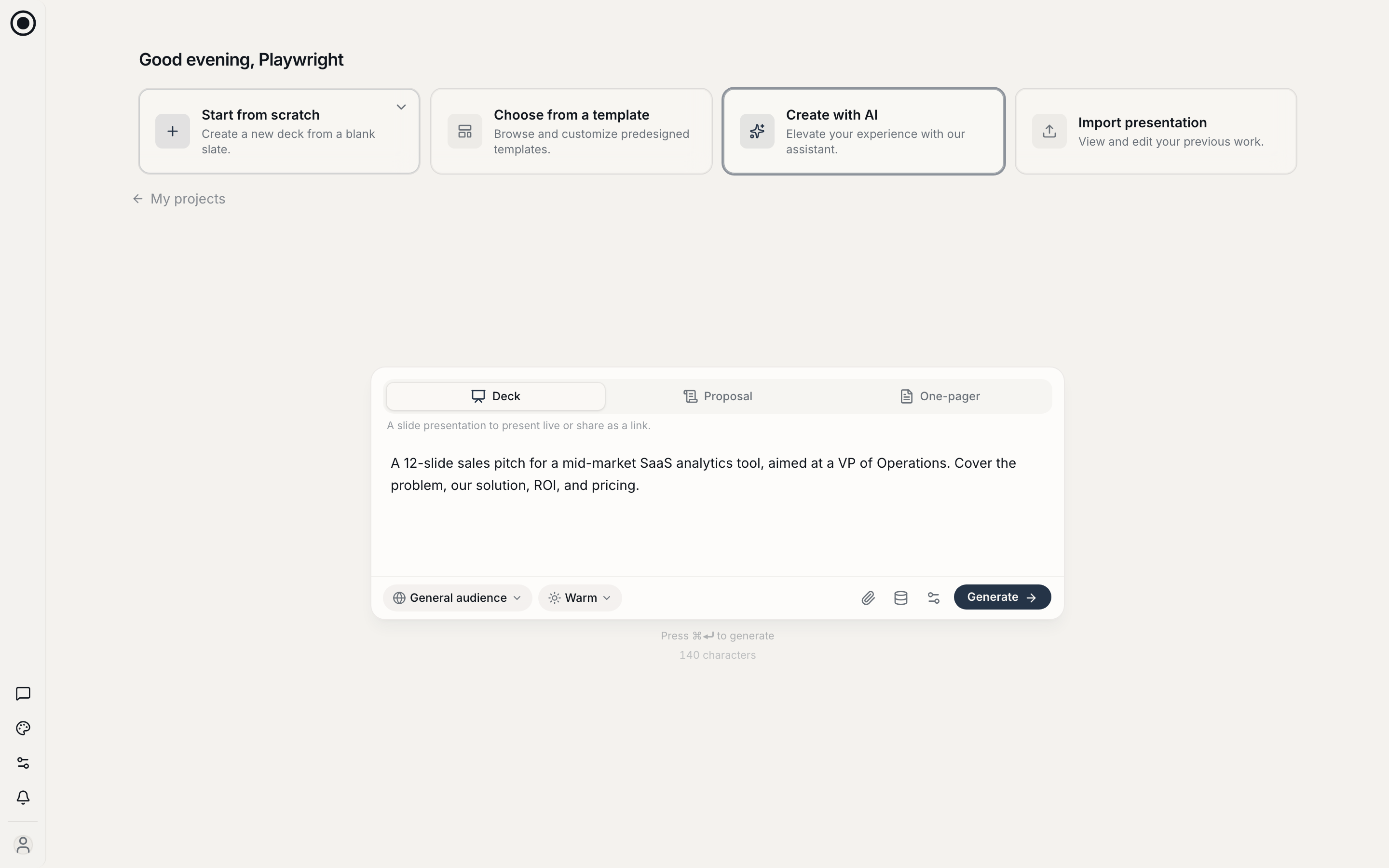
Generate a deck
Open the composer
From the home screen, you land on the generation composer. Describe the presentation you want in plain language — the topic, the audience, and anything specific it must cover.
A good prompt is one or two sentences. For example:
A 12-slide sales pitch for a mid-market SaaS analytics tool, aimed at a VP of Operations. Cover the problem, our solution, ROI, and pricing.
Add outline hints (optional)
If you already know the sections you want, list them. Encelade uses these as the backbone of the outline instead of inventing its own. Leave this empty to let Encelade propose the structure.
Generate
Click Generate. Encelade plans the outline, writes each page, and lays out text, images, and charts. A 10–15 page deck typically finishes in under three minutes.
The theme you pick decides the look — colors, fonts, backgrounds, and your logo. Create your own once under Brand → Themes (import it from your website or a deck), pick it when you generate, and every deck matches it.
Review in the editor
When generation finishes, the deck opens in the editor. Page through it, then adjust anything you like — see Edit your deck.
Tips for a better first result
- Name the audience. "For a VP of Operations" produces sharper framing than "about our product."
- State the length. Ask for a page count if it matters ("a 10-slide overview").
- Be specific about must-haves. Pricing tiers, a roadmap, a specific metric — call them out and Encelade will give them their own pages.
What's next
- Edit your deck — refine pages, text, and media.
- Share a link — publish and send it.
- Export to PDF or PowerPoint — download a copy.