You’ve probably got a PowerPoint deck that already works. The problem isn’t the content. The problem is that your client wants comments in Google Slides, your internal team lives in Google Drive, or your partner needs browser-based access without version confusion.
That’s when a simple file handoff turns into cleanup work. Fonts shift. Animations disappear. Layouts drift just enough to make the deck look sloppy. If you’ve done enough PowerPoint to Google Slides migrations, you learn quickly that conversion is easy, but preserving fidelity is the primary task.
Most guides stop at “upload the file.” That’s the least interesting part. The practical work is deciding what will survive, what needs a workaround, and when it’s faster to rebuild a slide than keep patching a broken conversion.
Table of Contents
- Why Teams Are Moving from PowerPoint to Google Slides
- The Core Conversion Process Explained
- Preserving Your Presentation’s Look and Feel
- Handling Animations and Embedded Media
- Troubleshooting Common Conversion Errors
- Beyond Conversion: Modern Workflows for Revenue Teams
Why Teams Are Moving from PowerPoint to Google Slides
A lot of teams don’t choose Google Slides because they dislike PowerPoint. They choose it because the work around the deck has changed. Reviews happen in browsers, edits happen across time zones, and approvals happen in shared links instead of attached files.
PowerPoint still leads on raw user count — it’s installed on hundreds of millions of desktops through Microsoft 365. But raw installs aren’t where the momentum is. Everyday presentation work is shifting into cloud collaboration, and Google Slides sits inside the Google Workspace ecosystem that Alphabet reports at more than three billion monthly active users. The point isn’t that one tool “won.” It’s that a growing share of real presentation work now happens in a browser, not just on a desktop app.
For practical teams, the appeal is straightforward. Google Slides is easier to share, easier to review in real time, and easier to keep in one place when multiple people need access. The file becomes less important than the workflow around it.
Practical rule: If three or more people need to touch a deck before it goes out, browser-based collaboration usually matters more than feature depth.
That’s why PowerPoint to Google Slides conversion keeps coming up in sales, marketing, education, and consulting. The ask usually sounds simple: “Can you put this in Google Slides?” What they really mean is, “Can you make this fit the way our team works now?”
There’s also a strategic reason to learn this well. Converting decks is often the first step toward a broader move away from file-based presentation work and toward faster, shared, web-native workflows. If you’re evaluating that shift, this review of the best PowerPoint alternative for B2B teams is a useful reference point.
The key is to treat conversion as migration, not export. A deck built for PowerPoint often assumes desktop fonts, local media, and animation behavior that Google Slides doesn’t handle the same way. Once you expect that, the process gets much cleaner.
The Core Conversion Process Explained
The mechanics are simple. The choice of method is what affects how much cleanup you’ll do later.

Google Slides can convert PowerPoint files by uploading a PPT or PPTX to Google Drive and opening it with Google Slides, which preserves most content while enabling auto-saved editing, as described in this guide on converting PowerPoint to Google Slides. In day-to-day work, that gives you two reliable paths.
Upload the whole deck through Google Drive
Use this when you want a full presentation converted into an editable Google Slides file.
Open Google Drive, upload the PPT or PPTX file, then right-click it and choose Open with Google Slides. Google creates a Slides version that you can edit and share like any other native deck.
This is the fastest route for straightforward migrations. It’s also the cleanest option when you need the whole file preserved as closely as possible before you start fixing anything.
A few habits help here:
- Keep the original PPTX untouched. Store a working copy before conversion so you can compare slide-by-slide later.
- Rename the converted file immediately. Teams often end up with a PowerPoint original and a Slides copy with similar names.
- Check the master slides early. If title pages or section dividers are off, the root issue is often in layout mapping, not the individual slide content.
Import selected slides into an existing deck
Use this when only part of the old PowerPoint belongs in your current Google Slides file.
Inside Google Slides, open the target presentation and choose File > Import slides. Upload the PowerPoint, preview the slide list, then bring in only the slides you need. If you want branding from the source deck to carry over, select Keep original theme during import.
This method is better when you’re merging legacy content into a current template, building a proposal from older materials, or reusing a few proven slides without dragging an entire outdated deck into your workspace.
Import is often cleaner than full conversion when only a handful of slides matter. Fewer imported slides means fewer inherited problems.
Here’s a quick walkthrough if you want a visual reference before trying it yourself:
When each method works best
The wrong method creates unnecessary cleanup. The right one usually depends on your intent, not the file.
| Use case | Better method | Why |
|---|---|---|
| Full migration of a legacy deck | Upload through Google Drive | Preserves the entire structure in one pass |
| Reusing only a few slides | Import slides | Avoids carrying over unneeded layouts and assets |
| Combining multiple old decks | Import slides | Lets you curate content instead of inheriting everything |
| One-time browser editing | Upload through Google Drive | Fastest route to an editable Google Slides version |
If the deck is simple, either route works. If the presentation is branded, animated, or media-heavy, the conversion method matters less than the audit you do before and after.
Preserving Your Presentation’s Look and Feel
The hardest part of PowerPoint to Google Slides conversion isn’t getting the file open. It’s stopping the deck from looking like a slightly damaged copy of itself.
Most fidelity problems come from three places: fonts, themes, and brand colors. They don’t fail for the same reason, so they shouldn’t be fixed the same way.
Fonts and themes rarely fail in the same way
Fonts break because PowerPoint and Google Slides don’t have the same font environment. A typeface that looks fine on a desktop can get replaced in the browser if Slides doesn’t support it. When that happens, the visible issue isn’t just typography. Text reflows, line breaks change, and carefully aligned layouts start to drift.
Themes are different. A theme may import, but master layouts often map imperfectly. That’s why title slides, agenda slides, and section dividers tend to show the first obvious misalignments. If you see repeated layout problems across multiple slides, inspect the layout structure before manually nudging every object.
A practical approach is to review the deck in layers:
- Check text-heavy slides first. They expose font substitution immediately.
- Check repeat layouts next. If one section divider is off, all similar divider slides may need the same fix.
- Leave one-off slides for last. Custom diagrams and dense visuals usually need individual treatment anyway.
Brand colors need manual protection
Color drift is easy to miss until the deck is in front of a client. It matters most for companies with tightly controlled brand systems.
The risk is highest with custom brand colors that fall outside a standard theme palette. Google Slides can quietly replace an unsupported or hand-entered color with the nearest match unless you recreate the palette deliberately. That’s the part most tutorials skip. “Keep original theme” helps, but it doesn’t guarantee color fidelity for custom branded elements.
What actually works:
- Create a color reference slide. Before conversion, add small shapes filled with every approved brand color you need.
- Keep those shapes in the converted deck. They become a visual palette you can eyedrop or manually match against.
- Audit charts and callout boxes first. These are the elements where off-brand color substitutions stand out fastest.
- Rasterize critical logo treatments when needed. If exact appearance matters more than editability, a static asset is safer than a rebuilt approximation.
For background design choices after conversion, this guide to good backgrounds for Google Slides is useful if you’re cleaning up theme inconsistencies.
If brand review is strict, don’t trust a converted theme until you’ve checked it on actual slides with charts, buttons, and dark backgrounds.
PowerPoint vs. Google Slides conversion fidelity
| PowerPoint element | Conversion quality | Recommendation |
|---|---|---|
| Standard text in common fonts | Usually good | Review line breaks and spacing after import |
| Custom fonts | Unreliable | Replace with supported alternatives or adjust layout manually |
| Theme colors | Mixed | Verify applied colors on charts, icons, and section slides |
| Non-standard brand colors | Risk of substitution | Preserve with embedded color reference shapes |
| Slide masters and custom layouts | Mixed | Rebuild recurring layouts if mapping is inconsistent |
| Logos and locked brand assets | Usually safer as static visuals | Use image exports when exact appearance matters |
A deck doesn’t need perfect fidelity everywhere. It needs fidelity where the audience notices. In practice, that means title slides, pricing slides, charts, logos, and any slide with tight alignment.
Handling Animations and Embedded Media
Animations are where optimistic conversions go to fail. If the original PowerPoint relies on motion for storytelling, expect to make choices, not just edits.
What survives and what breaks
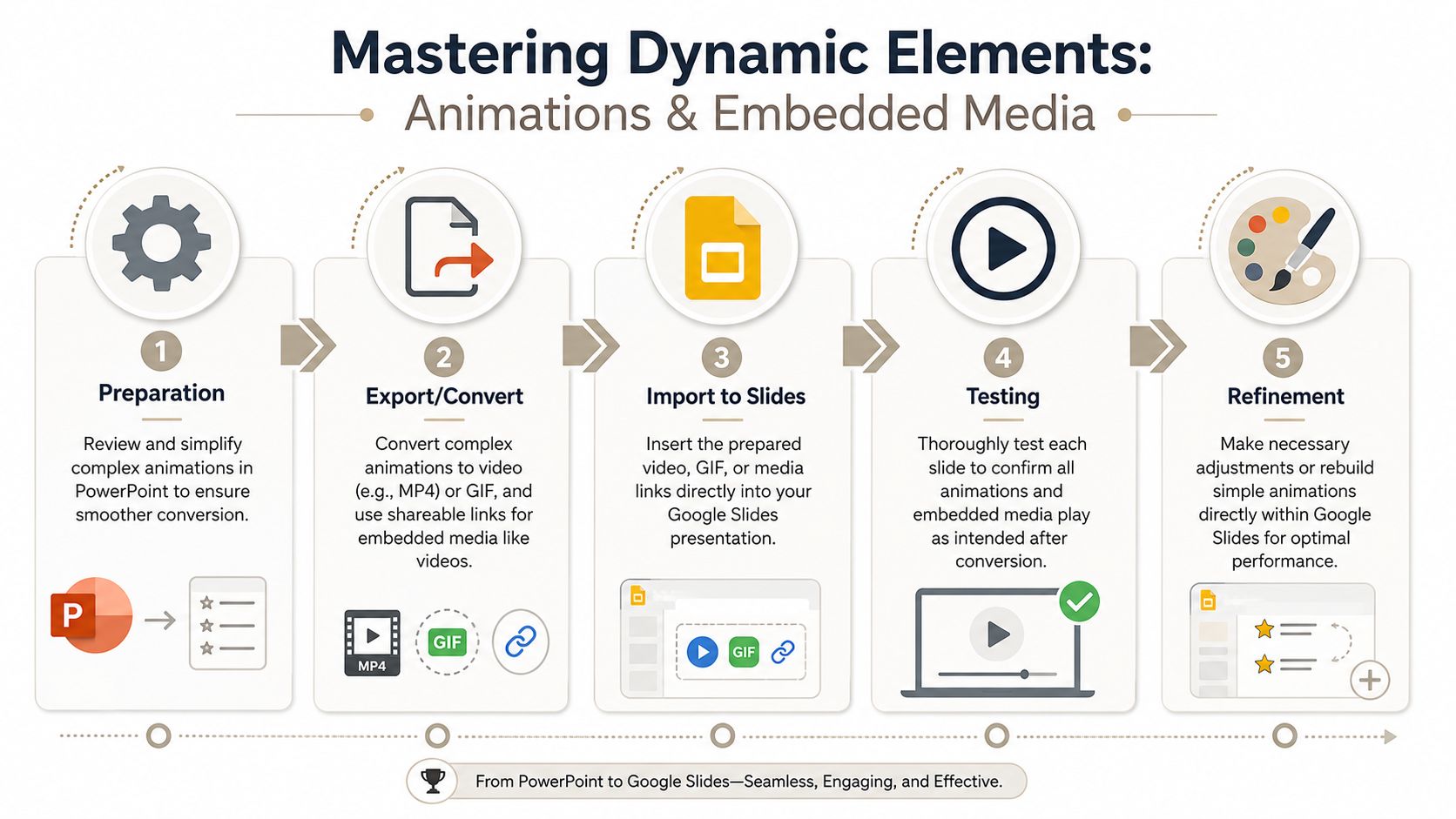
Advanced PowerPoint features such as the Morph transition and motion paths are not natively supported and are typically stripped or downgraded to a basic transition during conversion. Simple entrance effects like Appear, Fade, and Fly In usually carry over, while complex, layered, or trigger-based animations generally don’t survive intact, according to BrightCarbon’s analysis of moving decks to Google Slides. When motion matters, the common fix is to export that slide from PowerPoint as an MP4 or GIF and drop it back in.
That lines up with real migration work. If a deck uses simple entrance effects for emphasis, you may get usable results. If it uses layered sequences, object choreography, or motion-based storytelling, Google Slides won’t reproduce the experience reliably.
The mistake people make is trying to save every animation as animation. That usually wastes time.
Complex animation is often not worth rebuilding object by object. Preserve the effect, not the mechanism.
A workable salvage process
Treat animated content as three categories: keep, flatten, or rebuild.
Keep simple animation where the slide still communicates if the timing softens or one effect drops out. These are usually agenda reveals, single-object fades, or basic bullet entrances.
Flatten high-risk motion into video or GIF when the movement itself matters. Product UI demos, process builds, and animated diagrams usually fit here.
Rebuild only when the motion is simple enough to recreate quickly inside Google Slides and still stay editable.
A reliable workflow looks like this:
- Audit the PowerPoint first. Identify Morph transitions, motion paths, triggers, layered sequences, and animated SmartArt.
- Mark slides that depend on timing. If the story falls apart without the animation, don’t trust direct conversion.
- Export those moments as MP4 or GIF. Use a short loop or concise clip rather than a long embedded video.
- Insert the exported media into Google Slides. Keep the original static version of the slide nearby in case you need fallback content.
- Test playback in presentation mode. Playback behavior matters more than how the slide looks in edit view.
This triage method saves time because it avoids false precision. You’re not trying to recreate PowerPoint inside Google Slides. You’re trying to preserve audience comprehension.
Media playback works better with hosted files
Embedded media has a different failure mode from animation. The issue isn’t just compatibility. It’s reliability across devices and permissions.
When video or audio matters, hosted files are safer than hoping embedded PowerPoint media survives conversion cleanly. Upload video to a supported location, then insert it into Google Slides rather than relying on whatever was packaged in the original PPTX.
That approach helps in several ways:
- Playback is more consistent. Browser-based presentations handle linked media better than legacy embedded objects.
- Permissions are easier to control. Shared Drive or YouTube hosting gives you a clearer access model.
- File cleanup is simpler. You aren’t carrying oversized media blobs through the deck itself.
If a slide contains several moving parts, simplify the audience experience. Replace a brittle multi-click animation sequence with one embedded clip and one clear headline. That usually presents better anyway.
A good conversion doesn’t preserve every technical behavior. It preserves the intended message with the least fragile implementation.
Troubleshooting Common Conversion Errors
Most broken conversions aren’t random. They follow a handful of predictable patterns. Once you know the symptom, the fix is usually obvious.
The file won’t convert
If Google Slides refuses the file, start with size.
Google Drive only converts PowerPoint files up to 100 MB into Slides — past that, you’ll hit a “file is too large” error, a limit Google has acknowledged on its own issue tracker. Unsupported vector graphics such as SVG and EMF can also create trouble. That means “it won’t import” often has a technical cause, not a mysterious glitch.
Try this first:
- Compress media in PowerPoint. Oversized images and videos are common culprits.
- Split large decks into parts. Convert sections separately, then merge what you need in Google Slides.
- Remove unnecessary embedded assets. Old backup slides and hidden media inflate file size fast.
The deck opens but looks broken
This is the more common problem. The file converts, but spacing, sizing, and positioning feel off across the deck.
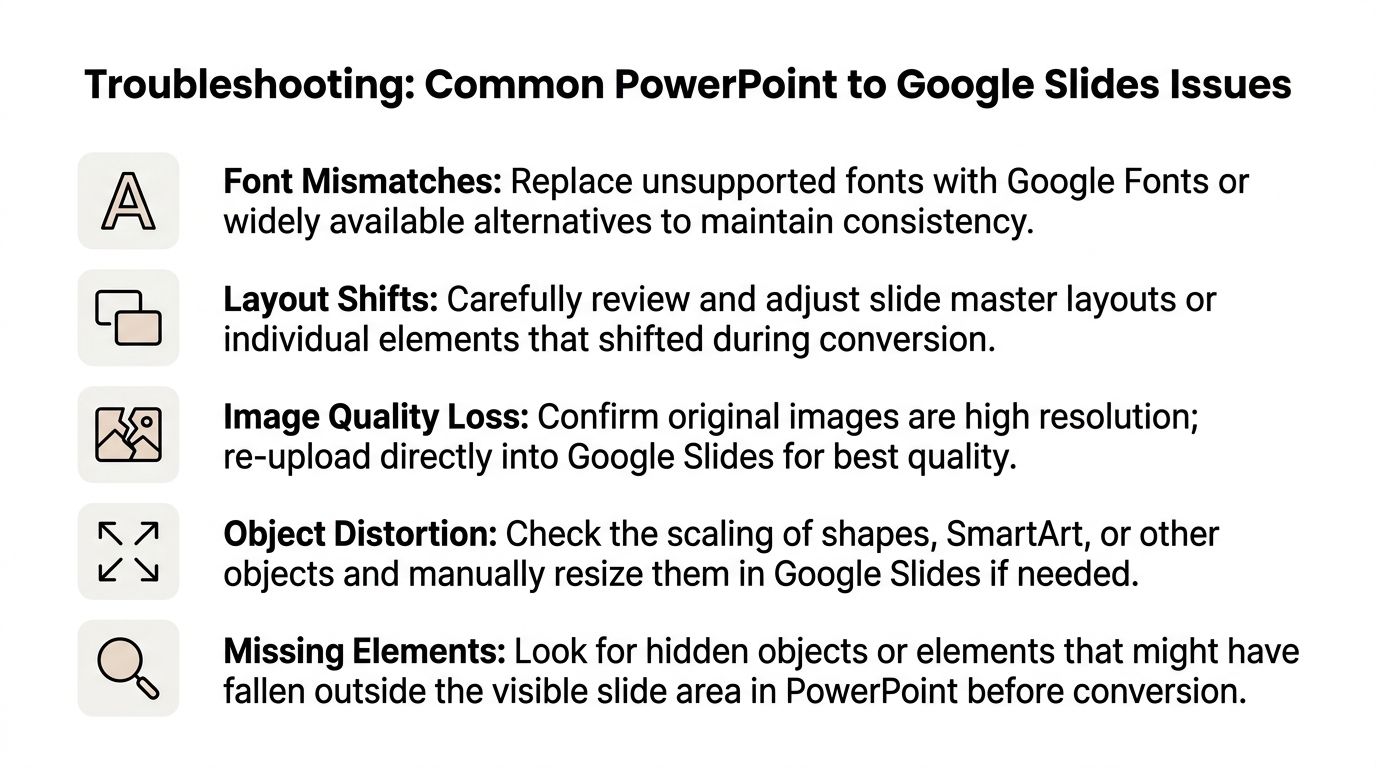
The wrong assumption is that individual slides broke independently. More often, the underlying issue sits in the layout system. Custom masters, font substitutions, and unsupported design elements can create repeated misalignment patterns.
Use a diagnosis sequence instead of random fixing:
- Open several slides using the same layout. If they all drift similarly, fix the layout logic first.
- Check replaced fonts. One substituted font can change text box height across the deck.
- Review grouped objects. Google Slides sometimes handles grouped items less predictably than native PowerPoint.
- Compare against the original file side by side. That reveals whether the issue is size, position, or style.
Broken layout across many slides usually points to one upstream cause. Don’t hand-tune ten slides before checking the master and font mapping.
Objects are missing or degraded
If icons disappear, diagrams lose clarity, or shapes look distorted, look for vector content and complex objects first. Google Slides doesn’t support every vector format the same way PowerPoint does, so objects that looked crisp in PowerPoint may vanish, rasterize badly, or shift in odd ways.
SmartArt and custom diagrams also deserve suspicion. They may import as editable-but-misaligned objects, or lose the visual balance that made them readable in the first place.
When that happens, the fastest fix is often one of these:
- Replace unsupported vectors with high-quality raster images. This preserves appearance, though you lose editability.
- Rebuild simple diagrams natively in Google Slides. Only do this when the object is structurally simple.
- Reinsert images manually. If image quality dropped, a fresh upload inside Slides often looks better than the converted version.
- Check for off-canvas content. Some elements don’t disappear. They shift outside the visible slide area.
If a slide still looks unstable after those fixes, rebuild it. That’s not failure. It’s good judgment. A clean remake of one important slide is often faster than trying to rescue every imported artifact from the original file.
Beyond Conversion: Modern Workflows for Revenue Teams
A rep updates a QBR in PowerPoint on Monday, converts it to Google Slides on Tuesday, and presents on Thursday. By then, pipeline numbers have changed, one customer screenshot is outdated, and two teammates have edited different copies. The file converted fine. The workflow still failed.
That’s the core limit of PowerPoint-to-Google-Slides migration for revenue teams. Conversion fixes access and collaboration. It does not fix stale data, copy sprawl, or the manual work required to keep high-stakes decks accurate.
Static slide files slow down revenue work
This problem shows up in proposals, renewals, business reviews, and solution decks because those presentations depend on details that keep changing. Pricing moves. Usage metrics refresh. Customer context shifts after every call. If the deck is just a file, someone has to keep chasing those updates by hand.
That is why mature revenue teams treat conversion as a short-term step, not the final operating model. The goal is not just to get a PowerPoint into Google Slides. The goal is to keep the presentation usable, on-brand, current, and easy to update without breaking layout every time someone edits it.
Web-native workflows fit how revenue teams operate
After hundreds of deck migrations, the pattern is clear. Teams get the most value when they stop treating presentations like attachments and start treating them like live working assets.
In practice, that changes a few things:
- Metrics can stay connected to source data. Teams stop pasting screenshots of charts that go stale the next day.
- Personalization gets faster. Reps can swap account details, proof points, and messaging without cloning a master deck into ten variants.
- Brand control improves. Shared templates, approved components, and web fonts are easier to govern than a folder full of slightly different PPTX files.
- Delivery gets more interactive. Product walkthroughs, clickable demos, and richer buyer-facing content work better in a browser-first format.
Revenue presentations are not design artifacts. They are operating documents. They need to survive frequent edits, last-minute stakeholder input, and data changes without turning into a formatting cleanup project.
If your team is heading in that direction, this guide on how to make interactive slides is a useful next step.
A practical rule works well here. If the deck is a one-off and the converted Google Slides file looks close enough, clean it up and move on. If the team rebuilds the same proposal, review, or account deck every week, stop optimizing the conversion step. Rebuild the workflow instead.
If your team is outgrowing static decks, Encelade turns research, CRM notes, spreadsheets, and documents into interactive, web-native presentations with live data, native 3D, and branded themes — so the deck stays current and on-brand without another round of file conversion.