HubSpot
Give your CRM numbers a clear story.
Use HubSpot data in charts and statistics. Give buyers the account context behind your pitch.
Requires a HubSpot connection with access to the records you want to use. Enable deal write-back separately from the share panel on Pro or above. Compare plans
Read the transcript
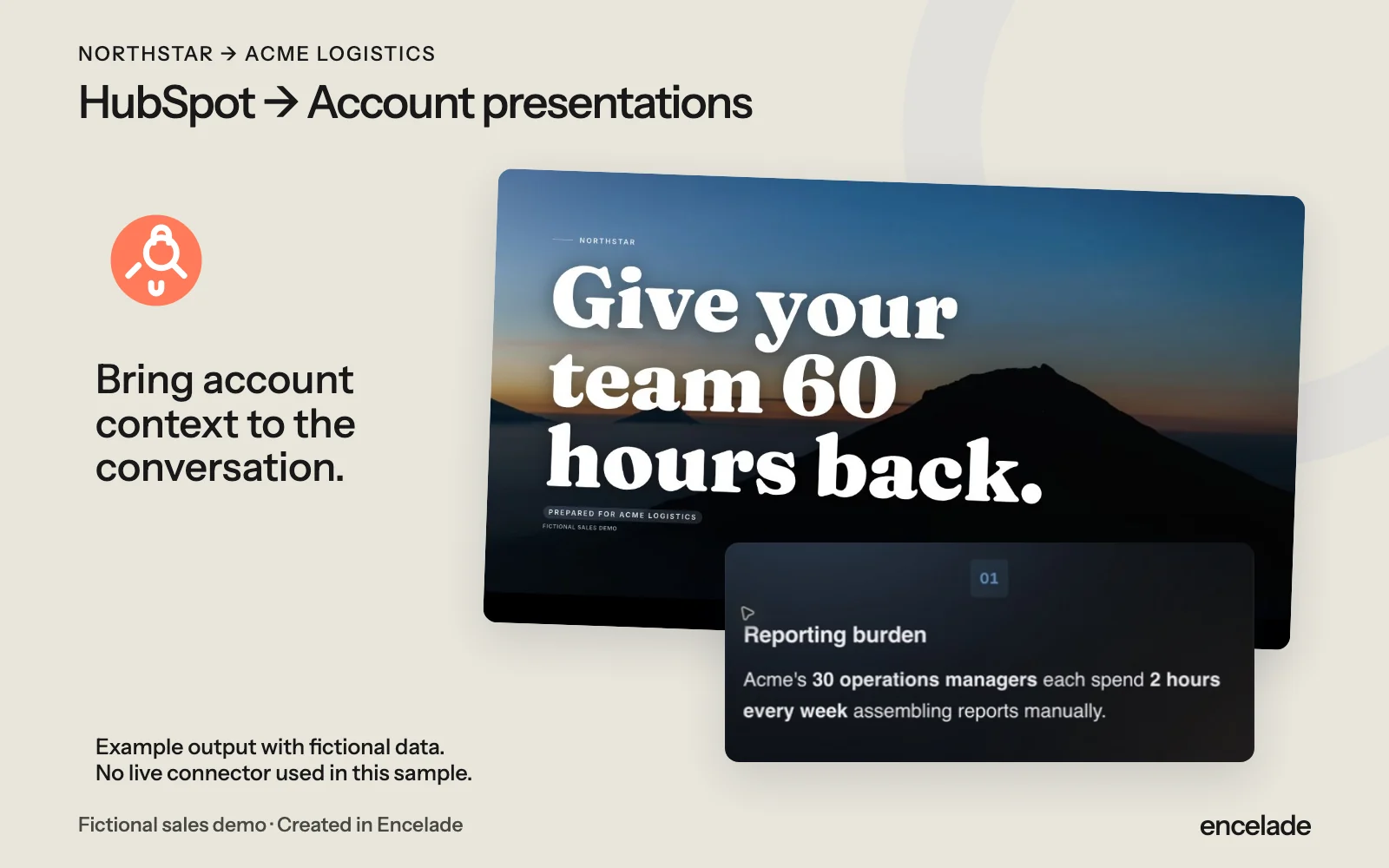
The HubSpot integration, paired with a real Northstar presentation created in Encelade. Northstar and Acme Logistics are fictional demo companies. This sample illustrates the output; no live connector was used.
How it works
Three steps to get started.
- 01
Connect HubSpot
Authorize your account and choose the supported data you need.
- 02
Build the deck
Add connected charts or statistics and explain what the numbers mean.
- 03
Share the result
Add the account story and share your presentation with one link.
In the product
What you can do.
- Charts and statistics from CRM data
- Account figures in your brand
- Shareable presentation links
- Deal linking with separately authorized write permissions
Your questions, answered.
What goes back to HubSpot?
When you enable deal write-back, Encelade syncs the deck URL, engagement totals, and proposal status to the linked deal. Timeline cards require a separate HubSpot capability. Calculator inputs and results stay in Encelade.
Can I change the linked deal?
For a connection with write-back enabled, choose a deal for each project or unlink it to stop future writes.
Which plan do I need?
Deal linking requires Pro or above. Authorize the additional deal-write permissions from the share panel, then choose a deal.