
Your team already has the list. The problem is everything that comes after it.
A product marketer has a clean five-point launch outline in Google Docs. A sales engineer needs the same sequence in a customer deck. RevOps wants the numbers to stay current. Brand wants the slide to look like the company made it on purpose, not like someone pasted a meeting note into a template at midnight. That’s where most numbered list template advice falls apart. It treats numbering as decoration, when the core issue is job fit.
The best numbered list template depends on what the list has to do next. Some lists need strict document structure and reliable multilevel numbering. Others need visual hierarchy for a pitch, collaborative prioritization in a workshop, or direct handoff into tasks. In presentations, the strongest pattern often starts in one tool and finishes in another.
That’s the lens here. I’m comparing these tools by the presentation job they solve best: drafting, visual storytelling, collaboration, task conversion, or brand governance. I’m also looking at what breaks under pressure, especially when lists get long, nested, or passed across apps. Standards matter here. The HTML standard defines an ordered list as one where changing the order would change the meaning of the document, and gives authors controls such as start and type in its definition of the ol element. That same logic carries into documents and slides.
If you end up rebuilding the winning pattern in Encelade, the practical advantage is straightforward: you can turn each numbered item into a responsive slide or card, add widgets and live data where needed, and share the result as a link instead of freezing it as a static file.
Table of Contents
- 1. Google Docs / Google Slides
- 2. Microsoft Word
- 3. Apple Pages
- 4. Canva
- 5. Adobe Express
- 6. Notion
- 7. Figma Design and FigJam
- 8. Miro
- 9. ClickUp Docs
- 10. Marq (formerly Lucidpress)
- Numbered List Template Comparison, Top 10 Tools
- Turn the Best Pattern Into a Reusable Deck
1. Google Docs / Google Slides
Google’s list tools are the default choice when speed and shared editing matter more than heavy formatting control. If your numbered list template begins life as an outline, meeting agenda, implementation sequence, or proposal structure, Docs and Slides handle the handoff cleanly. That’s especially useful when the same list needs to appear first as working copy, then as a presentable slide.
The strength here is portability. Teams can write in Docs, move a tightened version into Slides, and keep the numbering logic intact without rebuilding everything by hand. That matters more than it sounds, because manually typed numbers often break the moment someone inserts a new step.
Best fit for drafting and simple deck reuse
Google Docs and Slides work best when the list itself is still changing. You can restart numbering for a new section, change list styles, and keep comments attached to the content while the team edits in parallel. If the final presentation needs a structured outline before design work begins, this is one of the fastest ways to get there.
Practical rule: If more than one person is still rearranging steps, keep the master version in Docs until the sequence stops moving.
A few strengths stand out:
- Shared editing: Multiple people can revise the sequence, comment on specific items, and keep one live version.
- Cross-tool reuse: Lists transfer reasonably well between Docs and Slides for internal decks and workshop materials.
- Accessible structure: Semantic lists are more usable than manually typed numbers. The accessibility guidance on semantic lists notes that screen readers can announce list type, item count, and item position when authors use real ordered-list markup.
The trade-off is depth. Google’s multilevel list styling is fine for normal business work, but it’s not where I’d go for complex legal-style outlines or highly controlled publishing. If you need more design discipline after drafting, this is often the point where teams move into a slide system or rebuild the structure with a dedicated presentation template workflow.
Use Google Docs and Google Slides when your numbered list template needs to stay editable, shareable, and easy to repurpose.
2. Microsoft Word
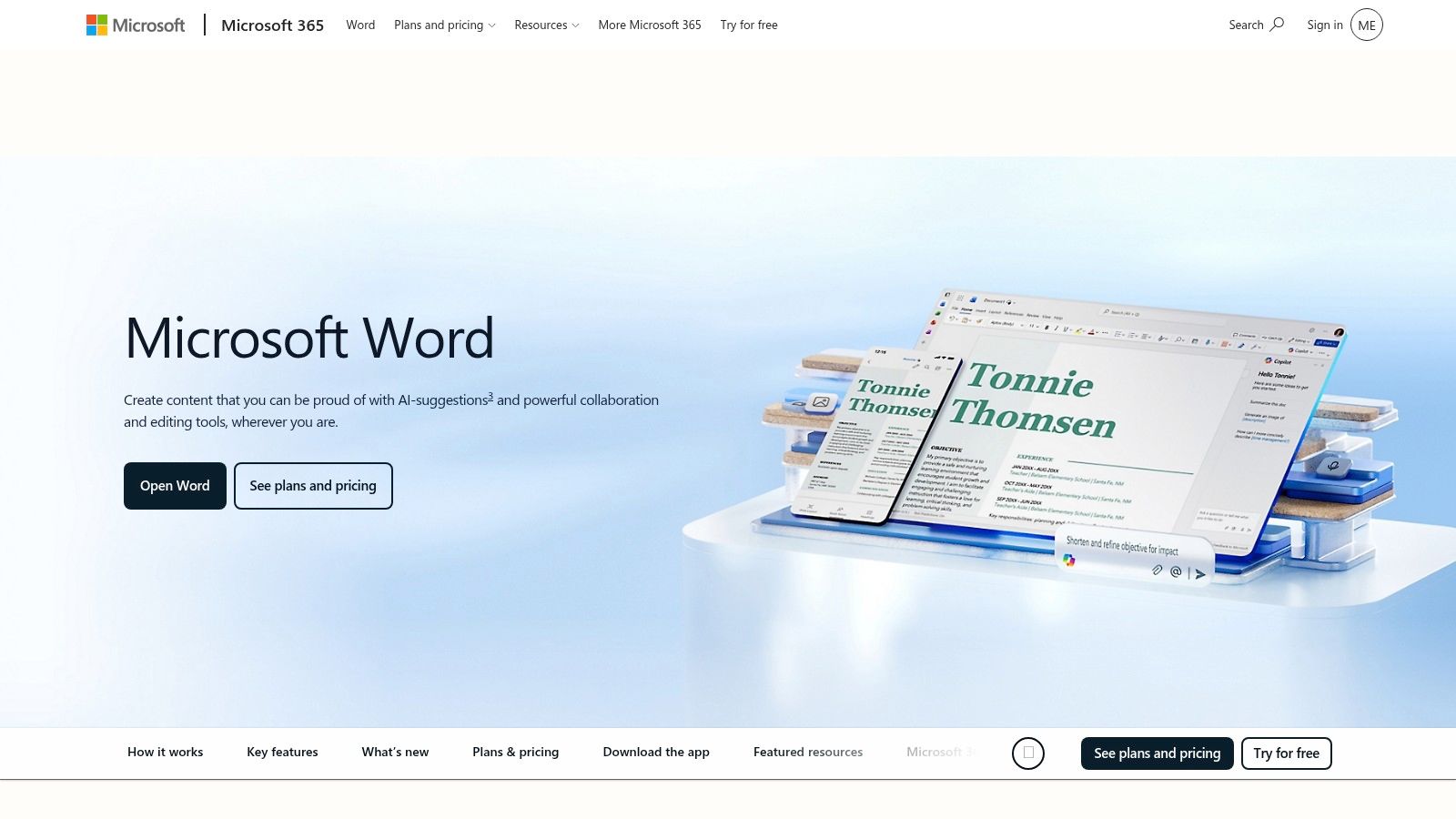
A familiar failure case: a process document reaches version seven, someone promotes a substep to a main step, and the numbering breaks in three places before review starts. Word remains the safer tool for that kind of job. I use it when the list itself carries operational meaning, not just layout.
Its value is strongest in drafting and controlled documentation workflows. Policy teams, operations managers, procurement leads, and compliance reviewers usually care less about visual storytelling than about whether 2.3.1 still points to the right instruction after a week of edits. Word handles that better than lighter editors because the numbering system can be defined, reused, and attached to styles instead of typed line by line.
The APA numbered list guidance makes the same practical point from a different angle. It tells authors to create numbered lists with the word processor’s numbered list function, which also indents the list automatically. The corollary for working documents is that software-managed numbering stays consistent as the document changes, and hand-typed numbers don’t.
That matters most in three situations:
- Long procedures with nested steps
- Formal documents that will be exported to PDF
- Templates where headings and lists need to behave predictably across revisions
Word also fits a specific handoff pattern. Draft the sequence in Word, settle the hierarchy, then rebuild only the presentation-worthy parts in slides. For visual storytelling, Word is rarely the destination. It is the place to resolve logic before design starts.
There is a cost. Advanced list settings in Word are easy to misuse. One person adjusts list styles correctly, another hits tab a few times, and the outline starts drifting. The tool supports strict structure, but only if the team treats the document like a controlled asset.
For collaboration, that usually means clear ownership and an actual version control process for documents. The Mozilla Science Lab guide to version control in collaboration explains the broader discipline well: keep a history of changes and who made them, be able to go back to earlier versions, and understand how each contributor changed the project over time.
For presentation work, the useful takeaway is narrower. Word is good at protecting sequence. It is weaker at turning that sequence into responsive slides, reusable widgets, or brand-governed layouts. If the numbered list will become a deck, treat Word as the drafting and control layer, then rebuild the strongest pattern in a slide system such as Encelade where spacing, hierarchy, and reuse are easier to manage across presentations.
Use Microsoft Word when your numbered list template needs exact hierarchy, stable exports, and disciplined document control.
3. Apple Pages
Apple Pages sits in a useful middle ground. It’s more polished out of the box than many basic editors, but it’s still approachable for people who don’t want to live inside enterprise document software. For teams that work mainly on Mac, iPhone, and iPad, Pages is often the cleanest way to turn a numbered outline into something that already looks finished.
The typography is the selling point. Numbered lists in Pages tend to look composed without much effort, which matters when the list is going straight into a client-facing brief, a leave-behind PDF, or a workshop handout.
Best fit for polished Apple-first documents
Pages works well when the list needs hierarchy but not legal-document complexity. You can create multilevel structures, adjust indents, and use custom list styles that look more deliberate than default office formatting. For an internal strategy outline that eventually becomes a presentation backbone, that’s often enough.
There’s also a practical readability angle. The UK Office for National Statistics reserves numbered lists for a sequence that must appear in a specific order, such as a set of instructions or a series of sequential questions, and asks that each item be a complete, concise single sentence with an initial capital and closing punctuation, in its ONS list formatting guidance. Pages supports that kind of tidy procedural writing well.
Pages has limits when it comes to collaboration. It’s decent for small teams, but if you need rapid comments from a cross-device group, or you expect heavy reuse across business systems, Google and Microsoft tend to be better options. I also wouldn’t use Pages if I knew the list would be edited repeatedly by people outside the Apple ecosystem.
Use Apple Pages when presentation prep starts as a polished document and the team values clean default design more than advanced admin control.
4. Canva
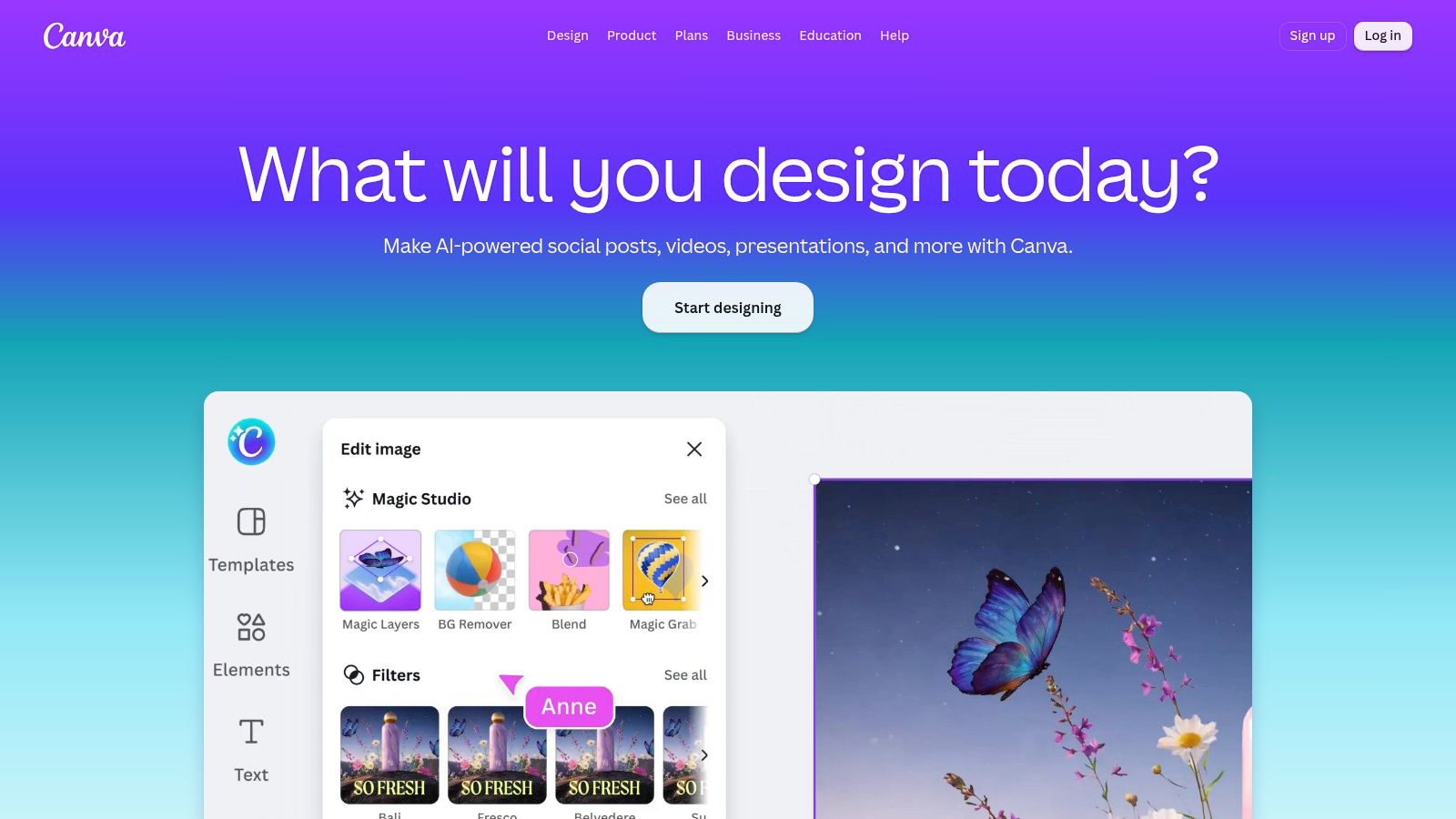
A common handoff goes like this. The team has agreed on the five steps, six priorities, or three rollout phases. Then someone has to get that sequence reading cleanly on a slide, a recap graphic, or a branded one-pager by the end of the day. Canva is great for that.
Its value is visual translation. Canva takes a settled list and turns it into a presentable asset fast. That makes it more useful for visual storytelling than for drafting, and more useful for lightweight brand application than for deep content management.
The strongest Canva numbered-list templates usually solve one of three presentation problems:
- A short sequence needs stronger visual hierarchy.
- Each numbered point needs its own icon, color, or card treatment.
- The same list has to be repurposed across slides, social graphics, and handouts.
That flexibility matters in marketing, internal comms, and event work, where the list itself is simple but the format changes constantly. A launch checklist can become a recap slide. A process explainer can become a carousel. A roadmap can become a single presentation visual.
The trade-off is structural control. Canva can display numbering clearly, but it is less comfortable when the content is still moving, the hierarchy is deep, or multiple people need to edit long sequences with precision. Dense procedural lists, nested outlines, and review-heavy working drafts usually hold up better in document or whiteboard tools first.
I treat Canva as the styling layer in the workflow. Draft the sequence in the tool where people can argue about order and wording efficiently. Move it into Canva once the list is stable. If the final deliverable needs live interaction rather than a static graphic, rebuild the winning pattern as responsive slide components in Encelade. For teams comparing Canva with broader slideshow software for presentation workflows, that distinction matters.
Use Canva when the numbered list’s main job is visual storytelling and brand-ready presentation, not authoring or collaboration.
5. Adobe Express
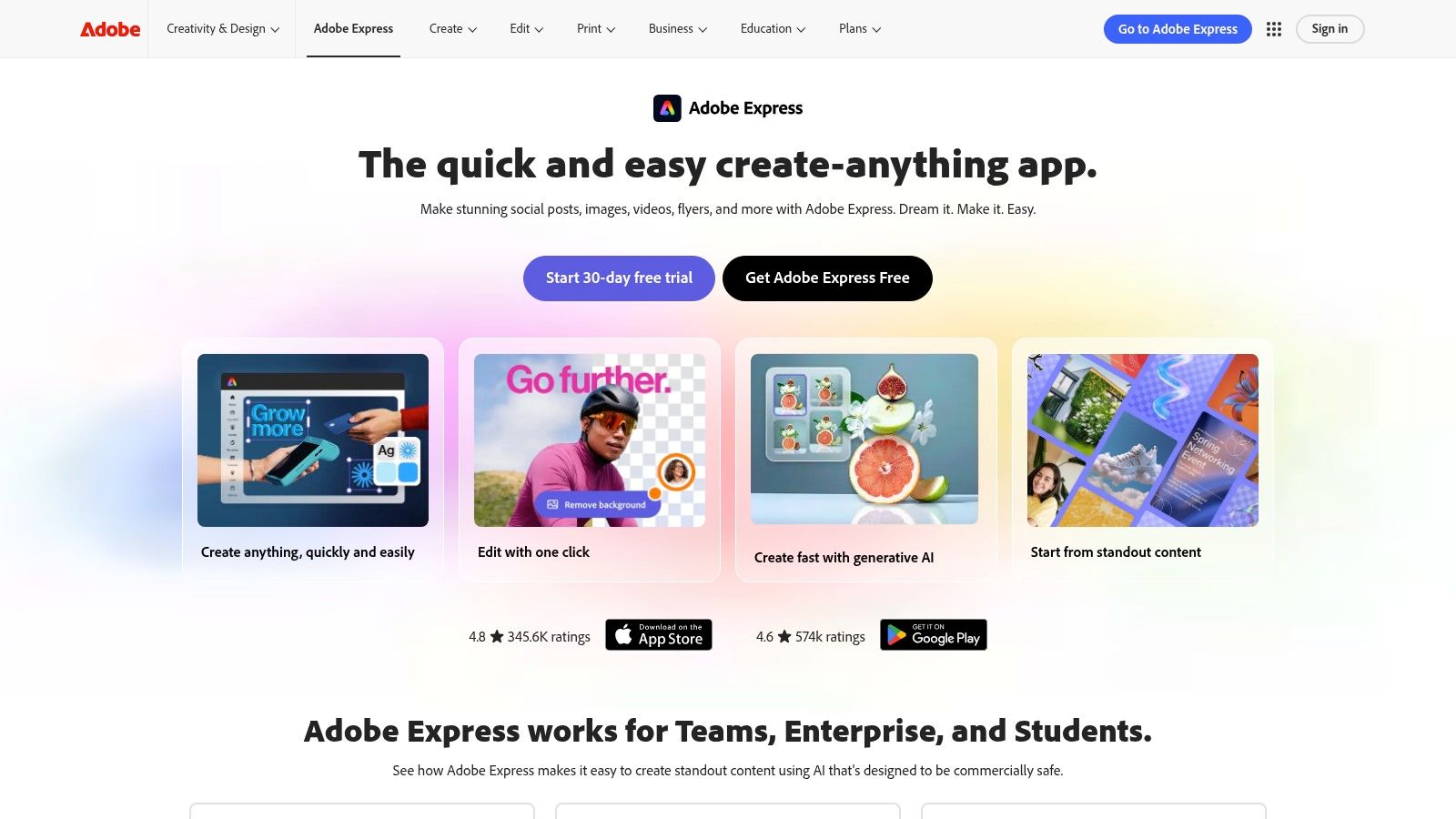
Adobe Express is a practical choice for teams that need polished list graphics without opening a full design workflow. It’s lighter than Illustrator, simpler than InDesign, and better suited to quick checklist-style assets than to long procedural documents.
In day-to-day work, that means launch checklists, event prep sheets, customer-facing tip lists, and printable one-pagers. The tool is built for rapid visual assembly, not for deep outline management.
Best fit for quick branded list graphics
Adobe Express earns its place when the numbered list is short, presentational, and likely to be reused in several formats. A marketing team can turn the same sequence into a social post, a PDF handout, and a simple presentation visual without much rework.
That said, this is still a design output tool. If the sequence itself is in motion, editing numbered content in a visual template gets clumsy fast. It’s much easier to finalize the structure first, then style it here.
A less obvious trade-off is meaning. Style manuals repeatedly separate ordered lists from unordered ones because numbering changes what the audience understands about sequence, rank, or instructions. The Australian government style guidance makes that distinction explicit in its guidance on lists and ordered meaning: use a numbered list when the order is important, and an unordered one when it isn’t. Adobe Express can make a list look strong, but it won’t protect that underlying logic for you.
Use Adobe Express when the job is lightweight design production and the numbered list template is already settled.
6. Notion
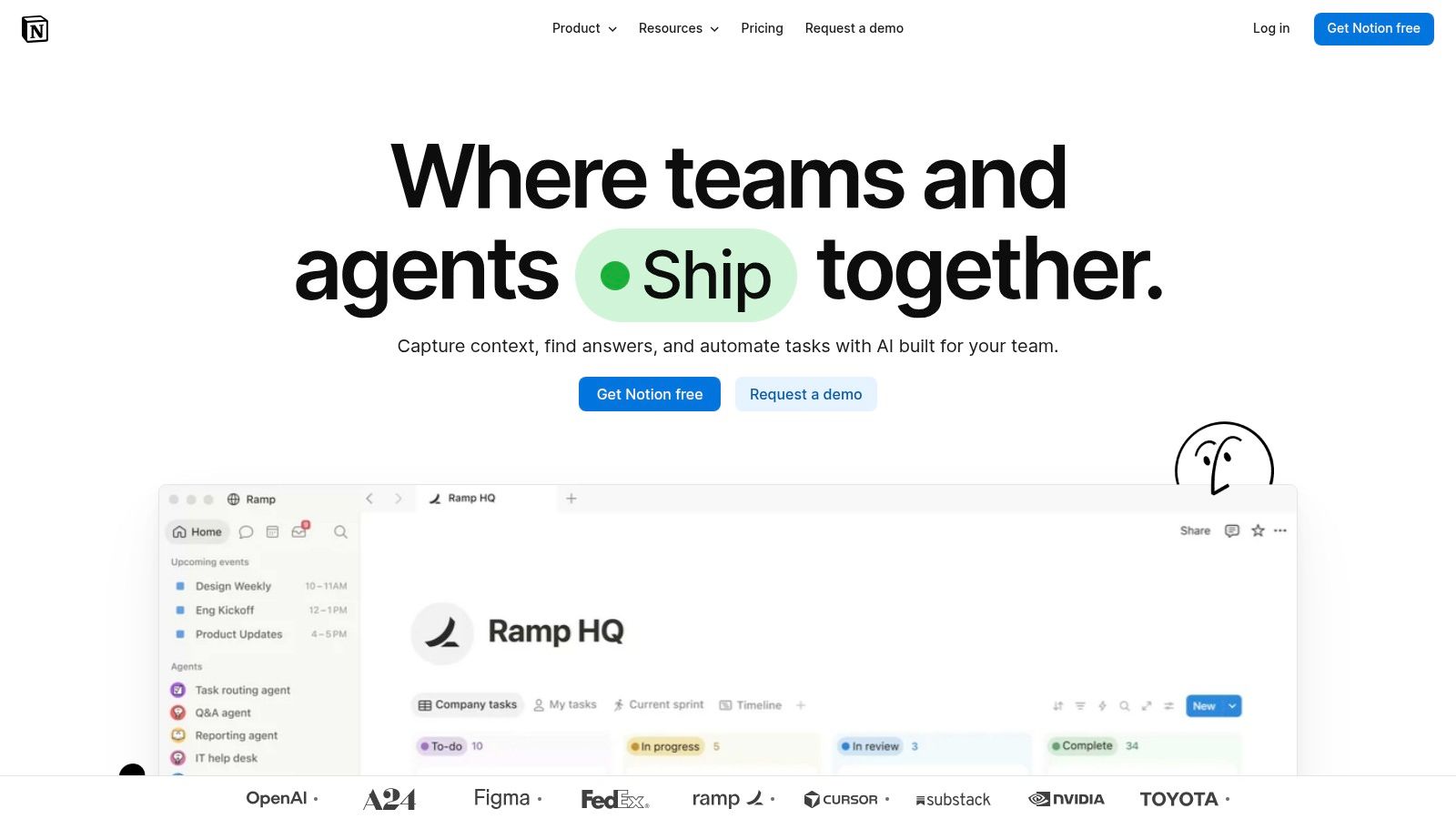
A product team updates an onboarding checklist three times in one week. A sales lead adds objections under step four. Support drops in screenshots and a policy link. That is the kind of numbered-list job Notion handles well.
Its value is not list styling. Its value is that the list lives inside the working system. Steps can sit beside decisions, owners, dates, reference docs, and database views, which makes Notion a drafting and collaboration tool first.
For numbered lists, that changes the evaluation. Notion is strong when the job is to keep sequence editable and shared across a team. It is weaker when the job is visual storytelling or tightly controlled document formatting.
The editing experience stays fast. Teams can type 1. and keep writing, reorder steps without repairing numbering by hand, and turn a rough sequence into a reusable SOP page without much setup. I use it most for process pages that are still absorbing feedback, because comments and linked context stay attached to the list instead of getting scattered across email or chat.
The trade-off shows up once structure becomes formal. Deep multilevel numbering, legal-style hierarchy, and heavily governed layouts are still easier in Word. Presentation polish is a separate issue. A Notion page can explain a process clearly, but it rarely performs well as a board-slide or client-facing visual without rebuilding the content elsewhere.
That rebuild step matters. If a Notion checklist becomes stable and now needs executive presentation, the strongest move is usually to extract the pattern, convert each numbered point into a modular slide block, and rebuild it in Encelade as responsive widgets. The content keeps its logic, but the delivery shifts from collaborative drafting to presentation.
Use Notion for living briefs, SOPs, and process lists that need constant revision and shared context. Move out of it once the numbered list becomes a governed document or a presentation asset.
7. Figma Design and FigJam
Figma is a design system answer to a list problem. When a numbered list appears inside product mockups, onboarding flows, help center visuals, feature comparison slides, or UI walkthroughs, Figma gives designers consistency that document tools can’t match. FigJam adds the messy early-stage collaboration that usually comes before the polished asset.
Numbered items become interface components rather than paragraphs.
Best fit for reusable visual list components
Figma’s text tools can handle ordered lists, but the bigger value is component reuse. A design team can create a numbered card pattern once, lock in spacing and typography, and reuse it across screens, ads, docs, and pitch visuals. That’s far more scalable than manually styling each list.
The trade-off is obvious if you push it too far. Figma isn’t built for long-form writing. Once the list becomes text-heavy or revision-heavy, designers end up doing editorial work in a canvas that’s better at layout than prose.
What I’ve seen work best is a split workflow. Writers finalize sequence and wording in a document tool. Designers translate that approved list into reusable blocks in Figma. That preserves structure while giving the deck or mockup a coherent visual system.
Use Figma when a numbered list template needs to become a repeatable visual pattern inside design work.
8. Miro

Miro is more for discovering a numbered list than for formatting one. It’s the strongest option here when the order is still being argued over in a workshop, planning session, retro, or roadmap exercise. Sticky notes, quick grouping, and voting make it valuable before the list becomes formal.
That matters for presentations because many decks start with a rough board rather than a clean outline. The sequence takes shape during the discussion and gets cleaned up later.
Best fit for collaborative prioritization
Miro shines when teams need to sort ideas into ranked order, process steps, or decision paths. Once the order settles, someone can translate that output into a proper document or presentation. In other words, Miro is where the numbered list template gets earned.
The downside is durability. It’s easy to make a useful board, but hard to keep one useful as the canonical document. Long lists also start to look chaotic fast, especially once every item carries comments, tags, or attachments.
A practical presentation angle is audience engagement. A common facilitation rule of thumb is to build in an interactive moment every 10 to 15 minutes to help maintain engagement. Treat that as a guideline rather than a research finding. Miro naturally supports that workshop style, but a static exported board loses much of the effect.
Use Miro for the conversation that decides the order. Use another tool for the artifact that has to survive after the meeting.
Use Miro when your numbered list template starts as a collaborative prioritization exercise.
9. ClickUp Docs
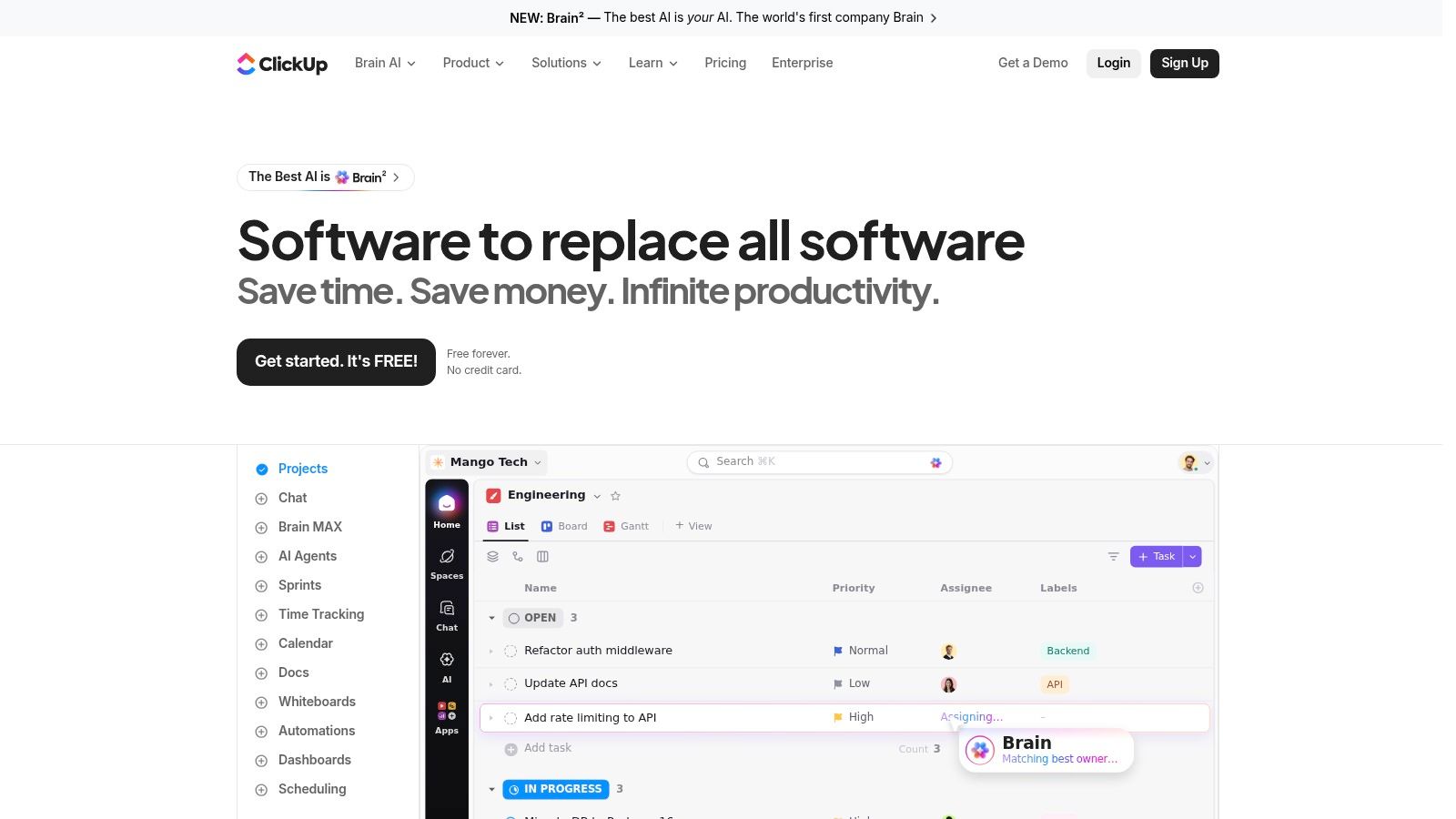
ClickUp Docs becomes useful the moment a numbered list stops being communication and starts becoming work. If your sequence is really a rollout plan, implementation checklist, or follow-up agenda that has to turn into assigned tasks, ClickUp has a concrete advantage over standalone document tools.
That advantage is workflow continuity. You’re not just writing the list. You’re positioning it for execution.
Best fit for task conversion
A team can draft a numbered process in Docs, comments, or workspace notes, then convert that material into tasks without copying content across systems. For project managers and ops teams, that’s a meaningful reduction in friction. The list doesn’t die as a document. It becomes the plan.
The trade-off is editorial feel. Dedicated document tools are still more comfortable for complex writing and outline refinement. ClickUp’s editor is good enough for working docs, but I wouldn’t choose it first for a heavily styled or nested numbered list template.
The dashboard connection is also worth noting. Static dashboards require manual updates, while dynamic dashboards update automatically as new source data is collected, as explained in the SurveyCTO overview of dynamic dashboards. That distinction matters when your numbered plan includes status metrics that leadership expects to stay current.
Use ClickUp when the numbered list template needs to convert directly into accountable tasks and tracked execution.
10. Marq (formerly Lucidpress)
Marq solves a different problem from most tools here. It’s neither the best drafting space nor the freest design canvas. It fills a need for distributed teams: editable numbered content inside locked brand systems. Franchise groups, field marketing teams, partner programs, and multi-location organizations usually understand that need immediately.
A standard numbered list template can look fine in one office and off-brand in twenty others. Marq exists to narrow that variation.
Best fit for brand-governed distributed publishing
The value is control. Teams can edit the actual list content while admins restrict the style decisions that often go sideways: fonts, spacing, layout, and object placement. That makes Marq useful for numbered one-pagers, customer guides, internal playbooks, and location-specific materials that still have to look centrally approved.
There’s also a maintenance angle that simpler articles often ignore. Large numbered lists can develop spacing and alignment problems as they grow, especially once the numbering reaches three digits. One troubleshooting article on Word list formatting specifically discusses extra spacing after number 100 and the need for indent adjustment. Marq won’t solve every structural issue for you, but it does reduce style drift when many people edit the same template family.
The downside is weight. If you only need a basic numbered list in a normal document, this is too much system for the task. But if brand governance matters as much as content, Marq earns its place.
Numbered List Template Comparison, Top 10 Tools
| Product | Core features | UX / Quality ★ | Value & Price 💰 | Target audience 👥 | Unique selling points ✨🏆 |
|---|---|---|---|---|---|
| Google Docs / Google Slides | Real-time collaboration, numbered lists, Slides↔Docs repurpose, version history | ★★★★☆ | 💰 Free / Google Workspace tiers | 👥 Individuals, small teams, educators | ✨ Fast sharing & live collaboration; 🏆 Ubiquitous web-native |
| Microsoft Word (Microsoft 365) | Advanced multilevel numbering, legal styles, reliable PDF export | ★★★★☆ | 💰 Subscription (M365) | 👥 Enterprises, legal, documentation teams | ✨ Deep outline control; 🏆 Best-in-class numbering continuity |
| Apple Pages | Polished typography, hierarchical lists, iCloud sync across Apple devices | ★★★★☆ | 💰 Free on Apple devices; premium extras via Apple Creator Studio | 👥 Mac/iOS-centric teams, designers | ✨ Print-ready defaults & templates; elegant typography |
| Canva | Large template library, simple numbered lists, brand kit on paid plans | ★★★★☆ | 💰 Freemium → paid individual and team plans | 👥 Marketers, social teams, non-designers | ✨ Rapid on-brand visuals; 🏆 Speed for marketing assets |
| Adobe Express | Template-driven checklists, Adobe ecosystem integration, quick edits | ★★★☆☆ | 💰 Freemium → Paid / Adobe tie-ins | 👥 Creative teams needing quick branded assets | ✨ Strong template variety; good for Adobe users |
| Notion | Numbered list blocks, databases & embeds, drag-drop reordering | ★★★★☆ | 💰 Freemium → Plus/Business/Enterprise | 👥 Product, ops, knowledge teams | ✨ Living docs + structured databases; repeatable templates |
| Figma (Design + FigJam) | Ordered lists in text layers, components & styles, collaborative design | ★★★★☆ | 💰 Free Starter → Professional/Organization/Enterprise | 👥 Designers, product teams | ✨ Reusable UI list components; handoff-friendly |
| Miro | Canvas-based lists, sticky-note workflows, 7,000+ templates | ★★★★☆ | 💰 Freemium → Starter/Business/Enterprise | 👥 Workshop facilitators, co-creation teams | ✨ Real-time ideation & prioritization; strong template library |
| ClickUp Docs | Markdown/shortcuts, convert lists to tasks, workspace integration | ★★★★☆ | 💰 Freemium → Paid plans | 👥 PMs, ops teams turning lists into work | ✨ Smooth task handoff from lists; integrated workspace |
| Marq (formerly Lucidpress) | Brand-governed templates, locking, centralized style controls | ★★★★☆ | 💰 Free plan → Pro/Team/Enterprise | 👥 Marketing ops, distributed brand teams | ✨ Template locking & brand governance; 🏆 Consistent on-brand output |
Turn the Best Pattern Into a Reusable Deck
The fastest way to choose a numbered list template is to stop asking which tool is best in general and ask what the list has to do next.
Choose document tools when outline fidelity matters most. Google Docs is the practical option for shared drafting and lightweight slide reuse. Microsoft Word is stronger when the numbering itself has legal, procedural, or compliance significance. Apple Pages works well when you want a polished document without a heavy enterprise workflow. Notion fits when the list lives inside a working knowledge base and is still absorbing feedback.
Choose design platforms when the list is already settled and now needs visual hierarchy. Canva and Adobe Express are good for short, branded assets that need to look clear on a slide, handout, or post. Figma is the better fit when the numbered pattern has to become a reusable component inside a broader design system.
Choose collaborative canvases when order is still under debate. Miro is useful for workshops, prioritization, and rough sequencing. Choose work-management tools when a list needs to become action. ClickUp is strong when the numbered structure should flow into tasks, dashboards, and ownership. Choose brand-governed publishing when local editing has to happen inside central rules. That’s where Marq fits.
The presentation layer is where these choices converge. A document outline, a design mockup, a workshop board, and a task plan can all produce the same final deck pattern if you rebuild them intentionally. The simplest sequence is this:
- Group each numbered item into a unit: Treat each point as a card, section, or slide rather than forcing the full list onto one dense page.
- Add only meaningful visual support: Use charts for changing metrics, maps for geography, device mockups for product steps, code blocks for technical workflows, and 3D context only where it clarifies the story.
- Connect live figures carefully: If you pull from Google Sheets, the refresh behavior depends on the method, and none of the built-in import functions is real time. Google’s documentation lists
IMPORTRANGErecalculating every 30 minutes, andIMPORTDATA,IMPORTHTML,IMPORTFEED, andIMPORTXMLevery hour, in its Google Sheets calculation settings reference. - Apply branding at the system level: Themes and shared styles do more than make the deck look nicer. They keep repeated numbered patterns consistent.
- Test the mobile version: Long numbered lists often collapse visually on small screens unless each item has room to breathe.
- Share by link, then export when needed: Link-based delivery cuts version drift, while PDF or PPTX exports still matter for stakeholders who need offline copies or archives.
That’s the practical reason to rebuild strong numbered-list patterns in a web-native format. The list stops being a static block of text and becomes a navigable presentation structure. Encelade fits that workflow when you want responsive slides, widget-based layouts, live data connections, and link-based sharing while still keeping PDF or PPTX export available for teams that need traditional files.
If your numbered list template has to move from rough outline to working presentation, Encelade gives you a way to rebuild it as a responsive, web-native deck with widgets, branding controls, and live data connections. It’s a practical fit when the list needs to stay structured, readable, and shareable across sales, marketing, or revenue workflows.