The audience is seeing each slide as you speak. Notes are not accessible while you try your best not to show your desktop. The tough part is sneaking speaker notes into a place where they are only visible to you and no one else. Writing speaker notes is the easiest part.
How to see speaker notes while presenting relies less on the format of the slides and more on the application, your personal meeting program, and whether you have a dedicated presenter screen. Get the display setting right and slides take care of themselves. Get it wrong and nothing prepares you.
Table of Contents
- The Presenter’s Dilemma on a Single Screen
- PowerPoint Presenter View on Second Screen
- Google Slides Presenter View and Mobile Notes
- Workarounds for Different Single-Screen Scenarios (Zoom, Teams, and Meet)
- Web-Native Decks and the Privacy Reframe
- Troubleshooting Presenter View Failures
- A Pre-Flight Checklist Before Every Presentation
The Presenter’s Dilemma on a Single Screen
The most frustrating version of this problem shows up right before a call. With your deck open, your CRM tabs are buried, and your slide notes with the one objection you didn’t want to forget sit waiting. The minute you alt-tab to take a peek, your audience sees your desktop flicker to show you pulling up your script.
That’s the fork that most guides skip over. Dual-monitor Presenter View is the direct, built-in workflow, but it requires you have an additional display. The other route is the laptop setup, which means you’re on Zoom, Teams, or Meet with no external display and nowhere to conceal your notes.
Practical rule: if your notes must be private, the presenter view and audience view need to be separate. This can be achieved by different methods such as the use of a second monitor, a separate window, or a deliberate screen-sharing choice.
This is why the method is so important. In a two-screen setup, the built-in display workflow allows the presenter to maintain private control thanks to the separation of display. In a single-screen laptop setup, the built-in workflow becomes brittle and this is the reason people resort to window sharing, browser tabs, and even a phone placed next to the keyboard to maintain control.
This decision is simple, but it is easy to miss. If you have a second display, you should use the built-in presenter workflow and stop there. If you don’t, you need to prioritize privacy since everything you share is visible to the audience, including the incorrect tab, window, or notes pane that you left open.
PowerPoint Presenter View on Second Screen

Microsoft has its own documentation regarding Presenter View. It explains that the presenter gets to see the current slide, the next slide, and the speaker notes. In addition to this, Microsoft’s speaker notes documentation explains that when the presenter is connected to a projector, Presenter View will be seen on the presenter’s computer and the slides will be seen on the projector. This explains why setting up Presenter View on a laptop and a screen feels completely normal while using a single computer monitor feels awkward.
The arrangement that actually works
You can set Presenter View up before the presentation in the PowerPoint Slide Show menu. Tick Use Presenter View before you launch the show. The most helpful feature that many people miss is the ability to select which monitor to display Presenter View on. If this is not set, the software assumes what you are trying to present, and usually, it is entirely wrong.
Setting this up before the presentation allows you to use these features throughout the entire presentation. Microsoft’s documentation on running Presenter View covers a scrollbar for moving through long notes and a Swap Presenter View and Slide Show command under Display Settings for when the two surfaces land on the wrong screens. These features become extremely helpful for resolving common issues.
Having two screens allows you to easily advance your slides, glance at your notes, and maintain eye contact with the whole room instead of searching for your next prompt. It provides the ability to move your preparation away from your delivery without making a major alteration to your slides.
Your audience must never be able to read your notes. If they can during your presentation, it’s not because your content is bad, but because your notes and screen setup failed you.
Google Slides Presenter View and Mobile Notes
Google Slides provides a way to accomplish this same task. Per Google’s documentation on presenting slides, you click the down arrow next to Slideshow on the top right, select Presenter view, and then select Speaker notes. Keep in mind that this says Slideshow, not “Present,” which trips people up when they follow older instructions.
There are a couple of keyboard commands as well. Pressing S at any time during your presentation opens your presenter notes, listed as Open speaker notes in Google’s Slides keyboard shortcut reference. That’s the fastest way in once the deck is already running.
Notes on Desktop and Phone
In Slides, speaker notes are a private text panel that is not shown to your audience. Just like with PowerPoint, keeping the presenter window separate from what your audience sees is the best way to ensure the slides are unaltered. Once you learn how to navigate the browser correctly, this can be an effective tool.
Mobile has its limitations, which merits some attention. Google documented the Speaker notes feature in the Android and iOS presenting flows, which surfaces only when you present to a Meet call or cast your presentation to another display. It’s a dedicated feature and should not be utilized as a general second screen. Think of your phone as an aid for practice and as a backup.
For teams that switch between using PowerPoint and Slides, the interface model shifts more than the button labels. In the end, both presenter and audience need an unobstructed view, and your speaker notes need to remain hidden from the audience. If you need to convert formats frequently, map the workflow before the meeting. Our guide to converting PowerPoint to Google Slides points out what remains the same after conversion.
Workarounds for Different Single-Screen Scenarios (Zoom, Teams, and Meet)
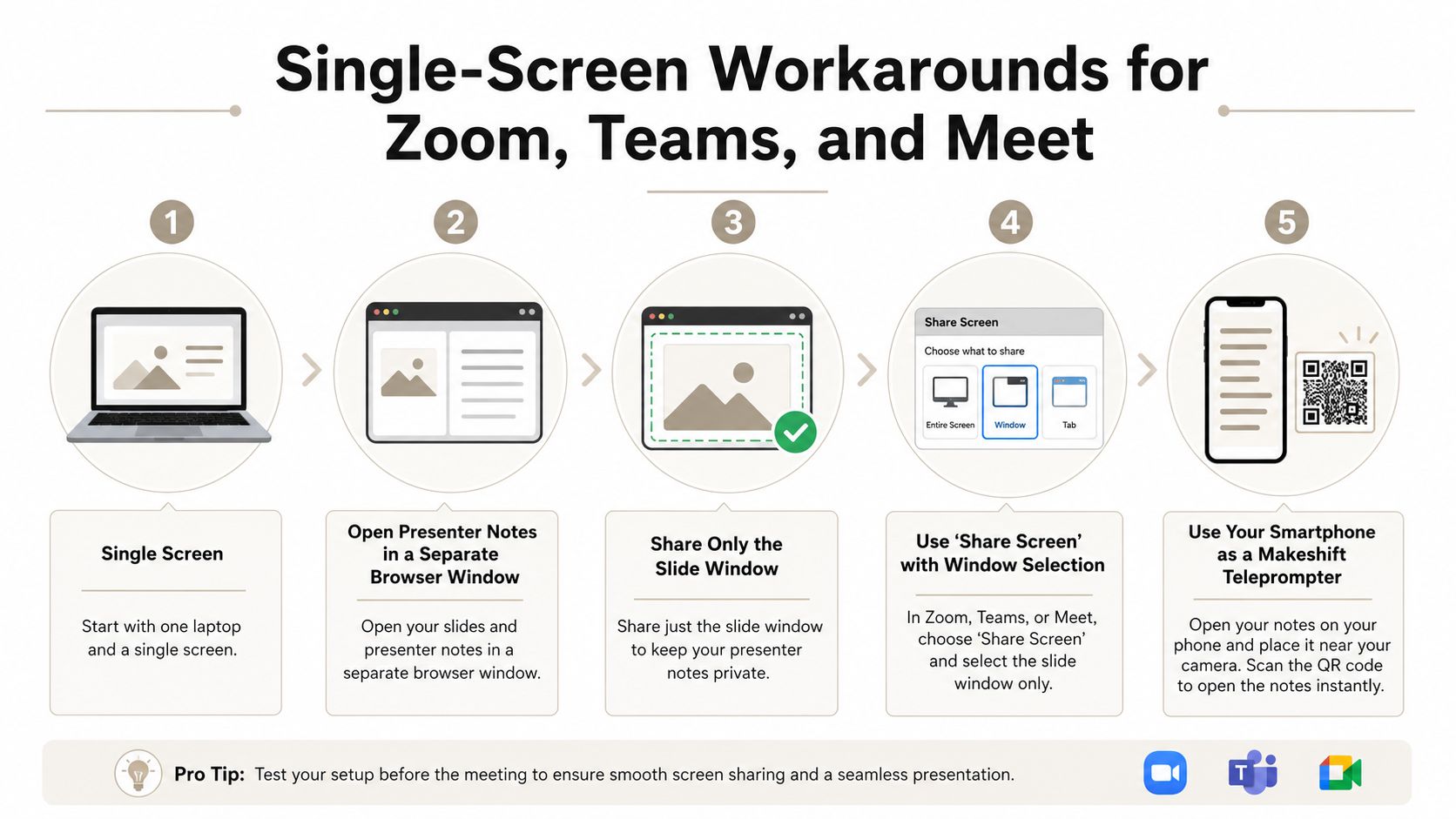
Getting a clean, unobstructed view of your presentation remains a major challenge for presenters, and it is also the biggest source of simplistic internet advice. The real gem is a single key combination that varies across platforms. On PowerPoint for Windows, Alt+F5 starts a presentation in Presenter View even if you have only a single display, and that is the way Microsoft’s shortcut reference for delivering presentations explains it. Most guides place that key combination in their two-monitor section, where it is of no help.
On PowerPoint for Mac, the equivalent shortcut is Option+Return, listed on the same page as Start the presentation in Presenter View. Microsoft attaches the “even if you have only a single display” wording to the Windows shortcut only, so on macOS treat Option+Return as the key command for Presenter View and test your single-display behavior in a rehearsal rather than assuming it matches Windows.
With either key command, you won’t have an issue seeing your notes. The meeting app decides what the audience sees, and that is a deliberate choice you make in the share dialog.
Share less, reveal less
The best solution is to share only the window the attendee needs. In Zoom, Teams, or Meet, select the slide show window instead of Entire Screen. Keep your notes in a window that will never be part of your sharing target. Using share screen will leak your notes, as that shares your entire desktop.
Leak test: before you share a window, open the one you plan to share during the meeting and look for any notes pane, tabs, or sidebars. Leave your notes behind the sharing window. Assume the audience can see what you can.
Here is the practical rule for laptop-only calls. If the audience can see your browsing, notification bars, or your notes, then you are sharing more than you should. If they are only able to see the slides, you have the correct settings. To be safe and avoid interruptions, turn on do-not-disturb. Just one notification message box can take away from the valuable effort you have set up for your meeting.
The second option is to have your phone on the side as a backup plan. This is common, especially if your presentation has already been shared and you have no time to change your setup. This is not elegant, but it definitely beats using a meeting preview to show your working notes.
Web-Native Decks and the Privacy Reframe
File-based decks put your content and your notes in the same artifact, which is where the privacy risk actually starts. A .pptx carries its notes inside the file. Send the file and you send the notes, whatever your screen-sharing discipline looked like during the call. That’s a different failure from a bad share target, and no display setting fixes it.
Link-based delivery turns this around, because the audience is taken to a published page instead of receiving your working file. In Encelade, speaker notes are stored per page and stripped from the published payload in two independent places, the server-rendered page and the public JSON endpoint. They have been completely removed from the published session and will not be found in the network tab.
Why the model matters
For the presenter, the interface is the traditional two-window one accessed through the browser. One window contains the presentation, and the other, called present mode, contains presentation controls: the current slide’s notes, previous and next slide thumbnails, an elapsed timer, and navigation buttons that drive the deck like a clicker. The presenter window can be kept private by being shown on the presenter’s machine when the presentation window is cast. The two windows only communicate over the same origin, a deliberate constraint so deck state carrying speaker notes is never delivered to another site.
One of the more subtle but important things to point out is that this is a presenter-and-projection model, not a remote follow-along one. When a presentation link is opened by a viewer, the viewer can proceed at their own pace and is not forced to advance to the slide the presenter is currently on. If you need everyone looking at a specific slide, you still need to screen-share.
Two smaller features make a significant difference in practice. Notes accept inline cue markers, so [TRANSITION], [ASK], [PAUSE] and timing hints like [~2 min] all get a color-coded placeholder in notes and don’t disappear into a block of text. This is the difference between notes you can skim while in the middle of a sentence and notes you must read. Additionally, notes maintain fidelity during a round-trip with PowerPoint, so importing a .pptx keeps the notes your team already wrote, and exporting hands them back. For more delivery tools, check out our roundup of slideshow software.
The trade-off is also important. Link-based tools address the send-the-file leak and give you version history on paid plans, but they still need a deliberate presenter workflow. If you’re used to hiding notes in PowerPoint, make sure to verify what the browser, the meeting app, and the deck platform are each exposing before you go live. The habit persists even when the software changes.
Troubleshooting Presenter View Failures
There are a few typical causes when Presenter View fails. The symptom tends to change, but the failure causes are usually in display detection, screen mirroring, or the meeting app sharing the wrong surface. The first step is to make sure Use Presenter View is selected and that the display is set to the one you want Presenter View to show.
| Symptom | Root cause | Quick fix |
|---|---|---|
| Presenter View never appears | No second display was detected, or the screens are mirrored instead of extended | Make sure Use Presenter View is selected and switch the display mode to Extend. On Windows with a single monitor, press Alt+F5, which is the shortcut Microsoft documents for this case. On Mac, Option+Return lets you use Presenter View, but Microsoft has no single-display documentation for it, so double check that configuration before relying on it |
| Notes show on the audience screen | The presenter is sharing the entire desktop, or the wrong window, in Zoom, Teams, or Meet | Share only the slide show window and ensure the notes pane is located outside the shared area |
| Presenter controls appear on the wrong monitor | The wrong display was assigned to Presenter View | Go to Display Settings → Swap Presenter View and Slide Show, or open the slide show settings and select the correct monitor |
The fix behind each failure
If Presenter View doesn't activate, check whether your system is treating the second display as a duplicate instead of an extension. That's the most common reason the presenter interface has nowhere separate to land, and without that separation, notes cannot stay private.
If attendees can see your notes, the issue usually isn't PowerPoint at all. It's the meeting share target. The audience sees exactly what you share, so the fix is to stop sharing the desktop and share the slide window alone.
If Presenter View opens on the wrong monitor, the display assignment is incorrect. Swap the two surfaces from the Presenter View toolbar, or re-select the monitor and relaunch so the presenter surface attaches to the private display instead of the one the room is watching.
A Pre-Flight Checklist Before Every Presentation
To stay organized and save time, run the same five-minute check every time you’re about to go live. Extended display is better than mirrored display for most setups, because it gives Presenter View a space to live privately. Then make sure the window Zoom, Teams, or Meet is sharing is the correct window, as that will dictate whether your notes stay private or end up on stage.
- Check the display mode. Make sure the system is set to extend as opposed to duplicate, to keep the presenter and audience displays separate.
- Confirm the window being shared. Ensure the meeting app is sharing a slide window instead of the entire desktop.
- Turn on the presenter mode. Do so before the show, or use the Presenter View shortcut on your platform, Alt+F5 on Windows and Option+Return on Mac.
- Verify note visibility. Check the secondary display and make sure your notes are on that display and not visible to the audience.
- Turn off notifications. A message preview on a shared display renders all other precautions on this list null.
- Keep a backup. Keep a paper copy or a second device on hand in case the meeting app acts up.
One last judgment call is deserved. Traditional Presenter View is still preferable for most in-room sessions with large audiences, projector setups, and situations requiring more controlled delivery. Link-based tools are better for situations where the ability to share, update, and control versioning takes precedence over file attachments. Regardless, notes need to be short enough to skim, which comes down to how much you assume you can say in the time you have, something we delve into in our guide to slide counts for a 10-minute talk.
The notes system you rely on when the pressure is on is the best system. If your notes system only works on rehearsal day, simplify it until it works with bad Wi-Fi, one display, and a live audience.
Notes are a delivery aid, not the delivery. They’re there to help you get through the points that are most important, specifically at the end where most presentations quietly lose momentum. Our guide to concluding a presentation delves into what those final cues should be.
If you need a presentation system that combines flow with hidden notes and prevents each live call from turning into a display-debugging exercise, take a look at Encelade. It builds link-based decks where the audience opens a page instead of your working file, and your speaker window stays on your device, or book 30 minutes here to see it on a real deck.